

Share with your friends!

Share with your friends!
Google is THE search engine. It is therefore a given that your potential customers will search for products and services on Google. To ensure your Shopify shop appears prominently in Google, you have two options. You can appear organically on the first page, but to do this you’ll need to invest in Shopify SEO. Alternatively, you can run adverts – known as Google Ads – which, for a fee, will place you straight at the top of Google’s search results.
In this article, I’d like to explain everything you need to know about Google Ads in conjunction with Shopify. This will give you the theoretical knowledge you need to run successful ad campaigns on Google.
Setting up a profitable Google Ads campaign is a skill in itself and, in most cases, should be carried out by a professional. At the same time, Google Ads is one of the cornerstones of online marketing.
The term ‘Google Ads’ refers to all the advertisements run by the Californian company Alphabet. It enables various advertising campaigns to be run on Google and YouTube. However, the term ‘Google Ads’ is predominantly used to refer to the adverts that appear in the Google search engine.
There are a total of seven campaign types to choose from in Google Ads. Let’s take a closer look at each of the Google Ads campaigns.

Search
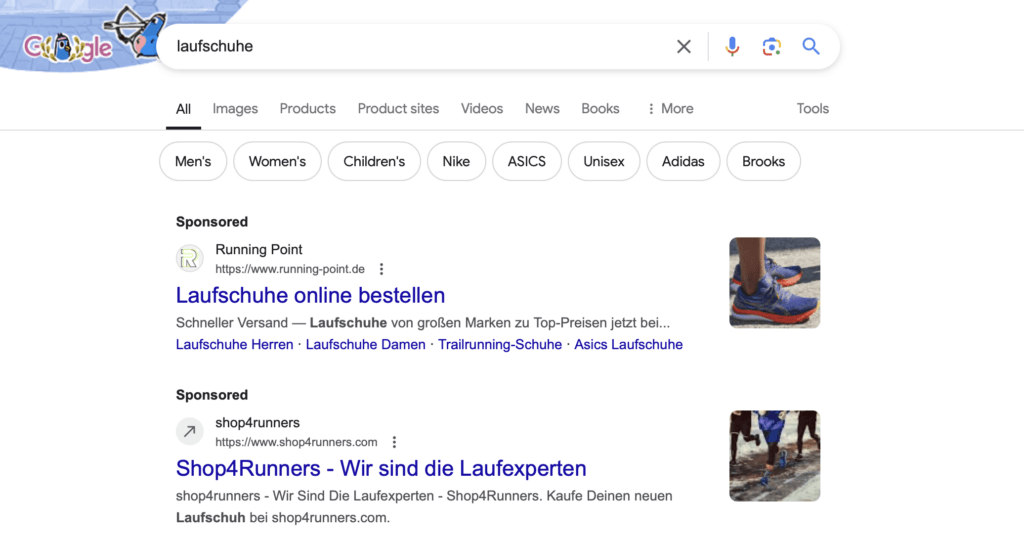
In a search campaign, text adverts are usually placed within the search results. These adverts are typically labelled ‘Ad’, which sets them apart from the organic search results. Such a campaign can be optimised for specific search terms that your target audience enters into the search bar. This allows the adverts to be targeted specifically at potential customers. This form of advertising is the simplest and most widely used method of running Google Ads.
Performance Max campaign
This type of campaign is ideal for reaching customers with high revenue potential. It allows for automatic placement across all Google platforms. The Google algorithm activates the relevant adverts without you having to put in much effort to optimise them. However, this form of advertising on Google offers fewer design options.
Demand Generation
A demand generation campaign in Google Ads is a specific type of campaign that uses engaging ad formats, such as image and video adverts, on platforms such as YouTube, Discover and Gmail. The aim of these campaigns is to engage potential customers in the early stages of the buying journey and to raise awareness of a product. Demand generation campaigns are particularly effective at reaching new audiences and encouraging them to take a closer look at the offering.
Display campaign
A display campaign consists of graphic adverts that appear on various websites. If a visitor has visited your website and then browses other sites, these adverts may be displayed there as images. This enables what is known as retargeting, which draws potential customers’ attention to your offering once again.
Shopping campaigns
Shopping ads are product listings on Google. These adverts are of particular interest to online retailers, as they offer an effective way of highlighting products. Such adverts contain detailed information about the products, such as images, prices, delivery charges and details of discount offers. These adverts even appear above the regular search results, which speeds up the shopping process and is an added benefit. Shopify Google Ads can also be run in the form of Shopping adverts.
Video campaigns
Video campaigns are mainly shown on YouTube. These are adverts that are shown before or in the middle of a YouTube video. However, video campaigns can also appear on websites.
You’re now ready to get started with Google Ads. First, you’ll need to set a few things up, and then you can create your first campaign. Let’s go through the necessary steps, one by one, until your campaign is ready.
To create Google Ads campaigns, you first need a Google account. You probably already have one; if not, you can create a Google account directly on the sign-up page. Alternatively, you can log in using your existing account.
1. Create a Google Ads account
Once you’ve logged in, you’ll see the option to create a Google Ads account.
Google will then ask you for your company name. Here, you must take particular care not to click ‘Next’ straight away. Otherwise, a ‘Smart’ campaign will be created; whilst this is designed to be beginner-friendly, it offers few customisation options and is therefore rarely effective.
So click on the ‘Advanced settings’ link; this will take you to the different campaign types.
2. Select the objective for the Google Ads campaign

You will now be guided through the various steps required to set up your Google Ads campaign. First, you need to select a goal for your campaign.
As you want to set up Google Ads for your Shopify shop, your objective will, in most cases, be ‘sales’. This means that you want users to click on your advert and then carry out a specific action on your website, such as buying a product.
3. Select campaign type
Here, you select one of the campaign types described above. For Shopify, ‘Search’ and ‘Shopping’ are particularly relevant here.
4. Campaign settings
This is where you set up your Google Ads settings. You can set your budget and bidding strategy, as well as create ad groups and adverts. I recommend that you set these parameters at a later stage.
5. Payment information and terms of use
To use Google Ads, you’ll need to provide your payment details and accept the terms and conditions. Once you’ve done that, your Google Ads account will be set up.
6. Keyword research
If you want to run effective adverts, you need an overview of the search queries you can use. These keywords are the names and related terms for your products. There are various tools available for keyword research, and Google Ads also offers a tool for this purpose: the Keyword Planner.
To ensure that your adverts reach exactly the people who are searching for your products, thorough keyword research is essential. Keywords are the terms that users enter into Google Search. With the free Google Keyword Planner, you can find relevant keywords and estimate their search volume. Based on your input, this tool suggests a wide range of keywords, from general terms to specific long-tail keywords.
Why is this important? For example, if a user searches for ‘red trainers’ and you have a keyword such as ‘red trainers’ in your campaign, there’s a chance that your advert will be displayed.
Different types of keywords:
"By using a wide range of keywords, you can target your audience more precisely and boost the effectiveness of your campaign."
Next, you can set up your first Google Ads or Google Shopping campaign for your online shop. To do this, follow these steps.
1. Create a new campaign
Either select the existing campaign or create a new one. Then select the objectives and the type.
2. General settings
In the following settings, you can specify where and to whom the adverts will be shown. Here, you should define your target audience as precisely as possible. The better you can define your target audience, the better your ROAS (Return on Advertising Spend) will be.
3. Budget and bid
First, you need to set a daily budget. You’ll find this option in the ‘Budget’ tab. Under ‘Bid’, you can then choose the focus of each campaign. As an e-commerce retailer, you should usually set ‘Conversions’ as your target here.
4. Ad groups
Ad groups help you organise your advertising campaigns in a structured way. They are like small sub-sections within a larger campaign and allow you to group your adverts and keywords by theme.
Create ad groups based on related themes to keep your campaigns organised and manage your bids more precisely. Example:
5. Add keywords
You can now add keywords that are relevant to the ad group. This step is particularly important, as your adverts will only be shown in the right place if you add the correct search terms. You can also edit the search terms at a later date.
You can also add negative keywords. These determine where your Google Ads won’t be shown.
6. Create an advert
Finally, it’s a matter of creating the actual adverts. To do this, you need to write concise ad copy for your search adverts that reflects the content of your landing page. These will then appear in Google Search results. The text must therefore persuade searchers to click through to your online shop.
Important: Make sure your adverts are relevant to the search queries and include a clear call to action (e.g. ‘Buy now’, ‘Find out more’).
As well as search adverts, Google Shopping Ads are particularly relevant for your Shopify shop. These are a dream come true for any e-commerce retailer and are managed not in your Google Ads account, but in Google Merchant Centre.
Google Shopping adverts appear in response to search queries where the user has a clear intention to make a purchase. Your products can be listed here either through paid advertising or for free. This means your products are displayed in a visually appealing way when searchers enter a relevant query into Google.

To successfully link Google Shopping Ads to your Shopify shop, you’ll need to follow a few important steps. Here’s a step-by-step guide:
1. Create a Google Merchant Centre account
Before you start promoting your products via Google Shopping, you’ll need a Google Merchant Centre account. This is the platform where you upload and manage your product data. Go to the Google Merchant Centre website and sign in with your Google account. Follow the instructions to set up your account.
2. Link your Shopify account to Google Merchant Centre
Shopify offers a simple way to link your account to Google Merchant Centre:
3. Set up the product data feed
Once you have linked Shopify and Google Merchant Centre, you’ll need to set up a product data feed. This feed contains all the key information about your products that will appear in Google Shopping adverts:
4. Create a Google Shopping campaign in Google Ads
Now that your products are in Google Merchant Centre, you can create a Google Shopping campaign in Google Ads:
5. Review and optimise your campaigns
Once the campaign is up and running, it is important to monitor and optimise it regularly:
By following these steps, you have successfully linked Shopify to Google Shopping and can now run targeted adverts for your products to generate more sales.
Now that your Shopify Google Ads are live, you have significantly increased the visibility of your products. The next step in your marketing strategy is to check whether your marketing activities are actually having the desired effect. To do this, you can set up Google Ads tracking in Shopify.
Shopify Google Ads Tracking allows you to track your conversions via Google Ads. This gives you an overview of your individual adverts. This is essential for further optimising your adverts or pausing those that aren’t performing well.
You can link your Shopify account to Google Analytics for free. Linking your accounts allows you to define conversions. Conversions can include, for example, purchases or page views. The easiest way to set up tracking in Shopify is via the Google & YouTube app.
All you need to do is download the app and then verify your email address and Google account details. Go to ‘Google Sales Channel’ in your Shopify admin and make sure that the email address you’ve entered matches the one you used to set up your Google Ads account.
Next, check in Shopify under ‘Google Ads Account’ to ensure the correct Google account is linked. If all the details match, you have successfully linked your accounts, and various conversions will be automatically generated in Google Ads.
Google Ads are excellent if you want to boost your Shopify shop’s turnover quickly. They allow you to showcase your products to users who are already interested, and you only pay if they decide to click on your advert.
Although Google tries to make creating adverts as easy as possible, it often takes an expert to ensure a positive return on investment.
As a Shopify agency, we offer a full range of Shopify marketing services to support e-commerce retailers. So, if your Google Ads campaign isn’t yet profitable, or if setting up the adverts is taking up too much of your time, we’d be happy to help you create and optimise your Shopify Google Ads.
Using Google Ads for Shopify offers numerous benefits that will help you quickly boost your e-commerce sales. First and foremost, this online advertising programme enables you to market your products to a broad, targeted audience. By utilising Google’s Display Network, you can create visual adverts that appear on various websites. This increases the visibility of your products and can lead to higher click-through rates. Furthermore, with Google Ads, you can target advertisers based on keyword-based search queries, which means that only users who are actively searching for the products you offer will see your adverts.
To create a successful Google Ads campaign for your Shopify shop, you should first choose the campaign type that best suits your objectives. For e-commerce, it often makes sense to choose a Shopping campaign, as it is specifically designed to drive product sales. Make sure your product information in Shopify is accurate and complete, as this information is synchronised directly with Google Ads. Use relevant keywords and create eye-catching adverts that appeal to potential customers. Test different ad copy and images to find out what works best.
Choosing the right search terms is crucial to the success of your Google Ads campaign. You should first carry out comprehensive keyword research to identify the terms that potential customers use to search for your products. When doing so, consider both general terms and more specific search queries. Tools such as the Google Keyword Planner can help you identify the best keywords.