Share with your friends!


Share with your friends!
Switching from WooCommerce to Shopify is worth it if your shop relies on extensions (plugins), updates and maintenance, and this is costing you more than it’s worth. The migration itself can be planned: transfer data, set up the shop from scratch, test it, redirect old URLs to the new ones, then switch the domain.
The costs: For small shops with few products and standard features, our Shopify migration page quotes prices ranging from around €1,500 to €3,000; for complex projects, the costs range from €4,000 to over €10,000. On top of this comes Shopify itself, starting at €36 per month on the Basic plan (as of November 2026).
The biggest risk isn’t the product data, but the URLs. Shopify uses a different URL structure to WooCommerce. If you don’t handle this properly, you’ll send Google and customers to error pages.
Don’t feel like reading? Here’s a quick summary of Zuckerschmuck’s move in *Short*:
You don’t switch e-commerce platforms just because another one is more popular at the moment. You switch because the one you’re currently using is actually holding you back. These signs suggest it’s time to make the move:
Stick with WooCommerce if your shop is running smoothly, you’ve got the technical side under control, and there’s a lot of custom logic built into WordPress that you’d have to rebuild from scratch on Shopify. In that case, good WooCommerce support is often the more cost-effective option. If you’re still undecided, our WooCommerce or Shopify decision guide will help you.
There are limits on Shopify too: according to Shopify, a product can have a maximum of three options. If you work with lots of variation attributes, you’ll need to restructure your products before the migration. And the costs for your subscription and apps continue to accrue every month, even if you don’t sell much.
Zuckerschmuck sells products for people with diabetes. Founder Sonja came across WooCommerce through a previous agency, which had recommended the system as the best solution. In conversation with Christian, she describes what came of it: “far too many plugins”, the number of which she eventually lost track of herself. And: “Because of the plugins and updates, everything was constantly crashing.”
This is her experience with this exact setup; it is not a judgement on WooCommerce itself: she explicitly refers to it as the worst choice for her shop.
The change didn’t happen straight away. Christian brought it up with her several times, but Sonja hesitated for a long time because of the cost and because everything had to be done from scratch. Her conclusion today: “It’s all simpler; it’s easier for us to manage, and it’s easier to keep track of stock.”
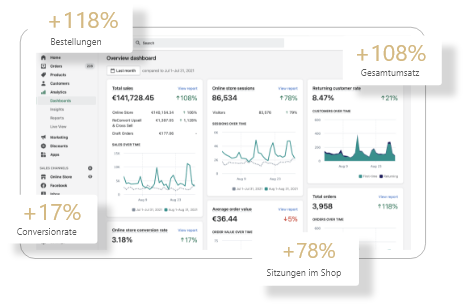
On the subject of turnover, she says: Since the start of the collaboration – which, at the time of the video, had been four years – it has doubled. This is not solely down to the move. Sonja herself cites the significantly expanded product portfolio, and the fact that the management of Google Ads has been reorganised. It is not clear from the conversation how much of this is attributable to Shopify.
The full interview with Sonja. From 5:36 onwards, the discussion focuses on the reasons for the change, and from 9:29 onwards on the trend in turnover:
The order follows the official Shopify guide for WooCommerce, supplemented by SEO preparation. Your old shop will remain online throughout; the new one will be set up in the background.
Shopify offers its own solution in the form of the free App Store Migration. It imports products and customers from WooCommerce CSV files. Many other tasks are handled via third-party apps. Here’s how it works, according to Shopify’s guide:
| Data | Path | Attention |
|---|---|---|
| Products | App or CSV | Import via the app as a draft |
| Variants | App or CSV | No variants via the app if 4 or more characteristics are selected |
| Categories | Keywords (tags) | Create collections from these |
| Customers | App or CSV | Standard export without full addresses |
| Passwords | Non-transferable | Registration via a one-time code |
| Order history | Apps only | Not possible via CSV |
| Vouchers | Create a new account or use the app | Not possible via CSV |
| Blog and pages | Manually or via the app | Not included in the WooCommerce export |
| Reviews | Apps | Not in product exports |
Three points are often underestimated:
When you switch platforms, almost all URLs will change. By default, WooCommerce uses /product/ and /product-category/, whilst Shopify uses fixed paths. Check your own permalink settings, as they may differ.
| Page type | WooCommerce | Shopify |
|---|---|---|
| Product | /product/bracelet | /products/bracelet |
| Category | /product-category/jewellery | /collections/jewellery |
| Contents page | depending on the organisation | /pages/delivery |
Google advises that you map old and new URLs to one another precisely. The rule here is: each old URL should be mapped to the new one with matching content; do not simply redirect everything to the homepage. This should be included in your list from Step 2.
You can set up redirects in Shopify either individually or via a CSV import. The limit is 100,000; on the Plus plan, it is 20,000,000. A redirect only takes effect if the old URL no longer returns a valid page.
The pitfall with /shop: According to Shopify’s help section, URLs beginning with /shop cannot be redirected. This affects you if your products are located at /shop/product-name via the ‘Shop-based’ permalink option, or if your shop overview is accessible at /shop. Before migrating, check which of these addresses have search rankings or backlinks, and ask the owners of any important links to update them to the new URL.
Other things you should make sure of:
Expect some fluctuations anyway. Google itself states that rankings may fluctuate temporarily during a site move. With proper mapping and redirects, you can minimise the risk, but you cannot rule it out entirely. To find out what happens next, see our guide to Shopify SEO.
You pay twice: once for the project, and then an ongoing fee for the platform.
Project costs. The price depends on the number of products, the design, the system architecture and any additional features. Our published guide prices:
| Project | Guide figure |
|---|---|
| Small shop, standard features | from approx. €1,500 to €3,000 |
| Customisation, plenty of SEO, lots of apps | From €4,000 to over €10,000 |
Ongoing costs. Shopify pricing plans, as at November 2026:
| Rate | Monthly | For annual payments | Fees charged by external payment providers |
|---|---|---|---|
| Basic | 36 € | 27 € | 2 % |
| Grow (formerly ‘Shopify’) | 105 € | 79 € | 1 % |
| Advanced | 384 € | 289 € | 0,6 % |
| Plus | from €2,100 | not specified | 0,2 % |
The trial period lasts 3 days; after that, with most plans, you’ll pay €1 per month for 3 months. Paid apps will be added to this; the total cost depends on what you chose in step 1.
To make a fair comparison, take your current bills: hosting, plugin licences, maintenance and agency hours spent on repairs. Only this total will show you whether Shopify is more expensive or cheaper.
In the video (from 11:20), Sonja offers some advice on this that you can apply to any quote: start by placing a smaller order and see if the prices hold up. And set out the scope very clearly, so that in the end nothing you took for granted is missing.
When you migrate to Shopify with Golden Web Age, we take care of data transfer, URL mapping and redirects, design, apps, testing and post-launch support. In a no-obligation consultation, we’ll take a look at your WooCommerce shop and let you know what needs to be migrated, where the risks lie and whether the switch is even worth it for you.
Yes. Using Shopify’s free app and CSV files, this is feasible if you have only a few products, simple variants and plenty of time. Things get tricky when it comes to order history, lots of URLs and custom features. That’s where errors creep in, which later cost you in rankings and turnover.
No. Whilst passwords cannot be transferred, imported customers log in using their email address and a one-time code. Only customers with legacy accounts need to create a new password. Do let your regular customers know in advance, though – this will save support enquiries.
Your WooCommerce shop will continue to operate until the domain has been migrated. You should therefore schedule a final reconciliation of stock levels, new customers and outstanding orders shortly before the switch, otherwise they will be missing from the new shop.
According to Google, for small and medium-sized websites, it can take a few weeks for most pages to be migrated; for larger ones, it may take longer. The number of URLs and the server speed are key factors. During this time, check Search Console to see which old URLs are still returning errors.